HTTPS and TLS
Overview
To secure your app with HTTPS, Traefik lets you use different types of TLS certificates.
- Let Traefik auto-generate, if no cert is given (not trusted)
- Use your own (manual)
- Let’s Encrypt (automated and trusted)
This keeps your app safe with HTTPS, whether you set up the certificates yourself or let Traefik manage them.
- TLS settings can go in static or dynamic config
- If Let’s Encrypt is used, Traefik creates and renew certs for you
Let’s Encrypt is usually the best choice if you want easy, secure, and automated certificate management.
Self-Signed Certificates
If you don’t provide any certificate, Traefik will create a self-signed one.
- Automatically generated by Traefik
- Browser shows warning that it's not trusted
This is useful for testing, but not recommended for production.
User-Defined Certificates
You can provide your own certificates if needed.
- Upload your cert and key files to Traefik
- Define their path in the configuration
- You can set more fine-grained configurations
- Traefik matches them to the correct entry points
You’re responsible for renewing these certificates before they expire.
Sample Configuration (User-defined certificate):
tls:
  certificates:
    - certFile: "/certs/domain.crt"
      keyFile: "/certs/domain.key"
    - certFile: "/certs/another-domain.crt"
      keyFile: "/certs/another-domain.key"
Once mounted, Traefik will handle the rest automatically.
Let’s Encrypt with Traefik
Let’s Encrypt lets Traefik create and renew certs for you automatically.
- No need to manually manage cert files
- Works well for testing and general use
- Certificates are renewed automatically before they expire
This is the easiest option when you don’t have strict company requirements.
Types of Let’s Encrypt Challenges
Traefik supports different methods to prove domain ownership.
-
HTTP Challenge
-
A temporary URL is created for verification
-
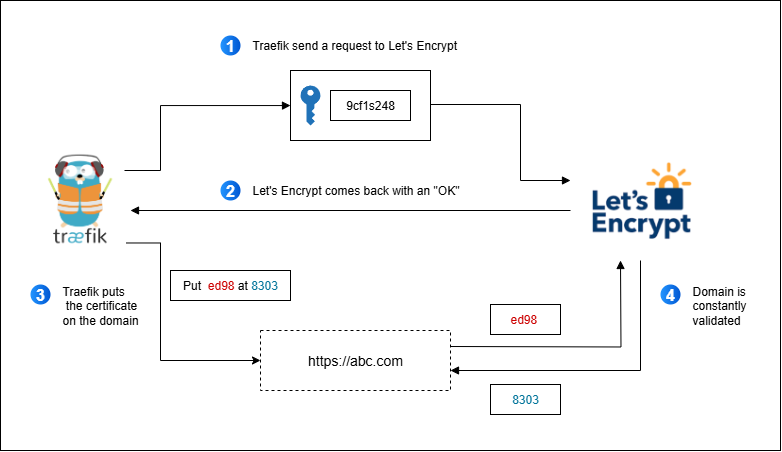
Let’s Encrypt gives a token to Traefik
-
Token is then served back to Let’s Encrypt for verification
http://<YOUR_DOMAIN>/.well-known/acme-challenge/<TOKEN>
-
-
DNS Challenge
- A DNS TXT record is created using your DNS provider
- Let’s Encrypt looks at the record to verify ownership
- Works with wildcard certificates
-
TLS Challenge
- Performs a handshake between Traefik and Let’s Encrypt
- Uses port 443 and handles everything at the TLS level
Here’s how the HTTP Challenge works:
[certificatesResolvers.myresolver.acme]
  email = "admin@example.com"
  storage = "acme.json"
  [certificatesResolvers.myresolver.acme.httpChallenge]
    entryPoint = "web"
DNS challenges work similarly but require access to your DNS provider’s API.
Matching Certificates to Entry Points
Traefik automatically links the certificate to the right port and domain.
- Port 443 is usually mapped to
websecure - Traefik uses the domain to choose the correct certificate
Once matched, your website will show the secure lock icon in the browser.
Configuring TLS in Routers
You also need to tell Traefik when to use TLS in your router.
labels:
  - "traefik.http.routers.myapp.tls=true"
  - "traefik.http.routers.myapp.entrypoints=websecure"
  - "traefik.http.routers.myapp.tls.certresolver=myresolver"
This enables TLS and tells Traefik to use Let’s Encrypt with your selected method.
Static versus Dynamic Config
You can add your TLS settings to either config type.
- Static config requires a restart to update
- Dynamic config lets you reload without restarting
If you change certs often, use dynamic config for easier updates.