Using a Custom Domain
Overview
A custom domain gives the site its own address.
My setup: GitHub Pages still hosts the files, and Porkbun connects the domain to GitHub. I might change it to Cloudflare in the distant future, but for now I am okay with Porkbun.
This guide moves the joeden site to https://joseeden.com. It also updates Algolia so search results use the new address.
| Setting | Value |
|---|---|
| Repository | joseeden/joeden |
| Previous address | https://joseeden.github.io/joeden/ |
| New address | https://joseeden.com/ |
| Alternate host | www.joseeden.com |
| Source branch | master |
| Deployment file | .github/workflows/deploy.yaml |
| Algolia index | joseedenio |
The new address does not include /joeden/.
For example, the writings page becomes https://joseeden.com/writings.
1. Prepare the Change
- Confirm access to the GitHub repository settings, Porkbun DNS, and the Algolia application.
- Save a copy of the existing DNS records and Algolia crawler configuration.
- Check the domain's nameservers in Porkbun. These instructions assume Porkbun manages the active DNS zone. If another provider manages it, edit records there instead.
- Prepare and test the local changes before switching the live domain.
- Schedule the GitHub domain setting, DNS changes, and deployment close together. The old build expects
/joeden/, while the new build expects/.
Note: Editing local files does not change the live website. GitHub and Porkbun settings are separate from the repository.
Before Pointing DNS to GitHub
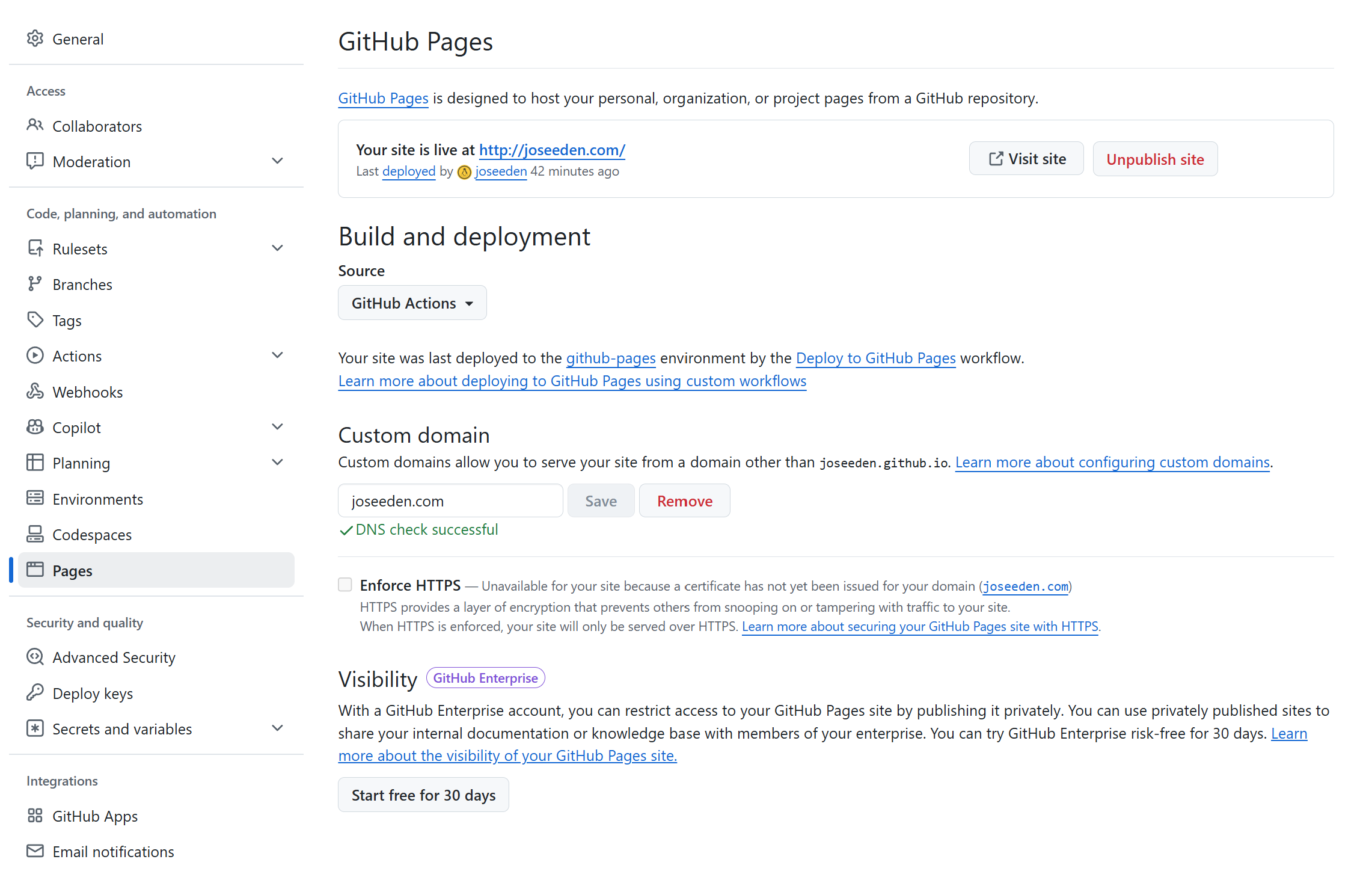
For this migration, joseeden.com is already saved in the repository's Pages settings. Complete Porkbun DNS first in section 3, then return to GitHub for the DNS check in section 4.
For a fresh setup, open repository Pages settings, choose GitHub Actions, and save joseeden.com under Custom domain before changing the website DNS records. An initial failed DNS check is expected while the domain still points to parking records. Continue with Porkbun instead of waiting for that check to pass.
GitHub recommends this initial domain assignment before DNS changes. See GitHub's setup order.
2. Update Docusaurus
Set the Domain and Base Path
- Open
docusaurus.config.tsin the repository root. - Set the public URL and base path as shown below.
- Keep the GitHub owner and repository names unchanged.
url: 'https://joseeden.com',
baseUrl: '/',
organizationName: 'joseeden',
projectName: 'joeden',
url controls the public origin, and baseUrl controls the path below it.
These settings also affect generated links and canonical URLs.
See Docusaurus deployment configuration.
The deploymentBranch option does not choose the trigger branch for this Actions workflow.
The workflow's on.push.branches setting controls that behavior.
Update Metadata and Share Links
- Find
themeConfig.metadatain the same file. - Update the existing social metadata entries.
{ name: 'og:image', content: 'https://joseeden.com/img/about/winnie.jpeg' },
{ name: 'og:url', content: 'https://joseeden.com/' },
- Review
src/theme/DocItem/ShareButton.js. Build the article URL from the configured domain and the current path.
import useDocusaurusContext from '@docusaurus/useDocusaurusContext';

// Inside the component, after obtaining location:
const { siteConfig } = useDocusaurusContext();
const articleUrl = new URL(location.pathname, siteConfig.url).href;
- Use
encodeURIComponent(articleUrl)when adding that URL to a social sharing query parameter. - Search the repository for old website addresses and hardcoded
/joeden/asset paths.
rg -n 'joseeden\.github\.io|/joeden/' docusaurus.config.ts src static plugins writings
Review matches individually. Repository links such as github.com/joseeden/joeden and Colab notebook links still refer to the GitHub repository and should remain unchanged.
Build and Preview
Run these commands from C:\Git\joeden with Node.js and npm installed. The current deployment workflow uses Node.js 22.
npm ci
npm run build
npm run serve
- Open the local address printed by the server.
- Check the homepage, a documentation page, and a writing.
- Open a nested page directly and refresh it.
- Check images, downloads, and navigation.
- Check the Spanish locale under
/es/. - Inspect generated HTML for canonical URLs that begin with
https://joseeden.com/.
The preview runs on localhost, but production metadata should contain the public domain. Docusaurus documents this build and preview process in its deployment guide.
3. Configure Porkbun DNS
-
Open the domain's Manage DNS Records panel.
-
Find your domain, expand Details, and open DNS Records.
-
Remove conflicting parking or forwarding records for these two hosts.
Keep all the MX and TXT records shown. Those support email and domain verification.
Type Host Current value ALIAS joseeden.comuixie.porkbun.comCNAME *.joseeden.comuixie.porkbun.com -
Select Add Record, choose its type, and enter the Host and Answer from the table.
-
Leave the default TTL, save, and repeat for each row.
Type Host Answer A Leave blank 185.199.108.153A Leave blank 185.199.109.153A Leave blank 185.199.110.153A Leave blank 185.199.111.153CNAME wwwjoseeden.github.io
The blank Host represents joseeden.com, often written as @ in other DNS tools.
The CNAME Answer contains neither https:// nor /joeden/.
Use the Porkbun DNS editor instructions for adding and editing records.
Where Do These IP Addresses Come From?
GitHub publishes these four IPv4 addresses in its official custom domain documentation, under Configuring an apex domain. They were checked on September 28, 2026.
- Use all four published addresses for the root domain's A records.
- These are shared GitHub Pages addresses, not IP addresses assigned specifically to
joseeden.comor supplied by Porkbun. - Porkbun stores the DNS records that direct visitors to GitHub Pages.
- GitHub uses the requested hostname and the repository's custom domain setting to serve the correct website.
Note: Check the official GitHub documentation when repeating this setup in the future. Use its current values if the published addresses change.
Optional IPv6 Records
Add all four records below if IPv6 support is wanted, alongside the A records. Remove unrelated old AAAA records for the root host.
| Type | Host | Answer |
|---|---|---|
| AAAA | Leave blank | 2606:50c0:8000::153 |
| AAAA | Leave blank | 2606:50c0:8001::153 |
| AAAA | Leave blank | 2606:50c0:8002::153 |
| AAAA | Leave blank | 2606:50c0:8003::153 |
Check DNS
Run the following in PowerShell:
Resolve-DnsName joseeden.com -Type A
Resolve-DnsName www.joseeden.com -Type CNAME
Resolve-DnsName joseeden.com -Type AAAA
- Compare A results with the four IPv4 addresses above.
- Confirm the CNAME target is
joseeden.github.io. - Expect AAAA results only if IPv6 was configured.
- Compare a public resolver if the local answer appears stale:
Resolve-DnsName joseeden.com -Type A -Server 1.1.1.1.
4. Check GitHub Pages
After updating Porkbun, return to GitHub to validate the website records.
-
Confirm Source is GitHub Actions and Custom domain is
joseeden.com. -
If the domain is already saved, leave it in place and select Check again.
-
Wait for the DNS check to succeed before continuing to HTTPS setup.
DNS Check Unsuccessful
NotServedByPagesError means GitHub cannot confirm that the domain points to its Pages servers. This can appear before Porkbun is configured or while old DNS answers are cached.
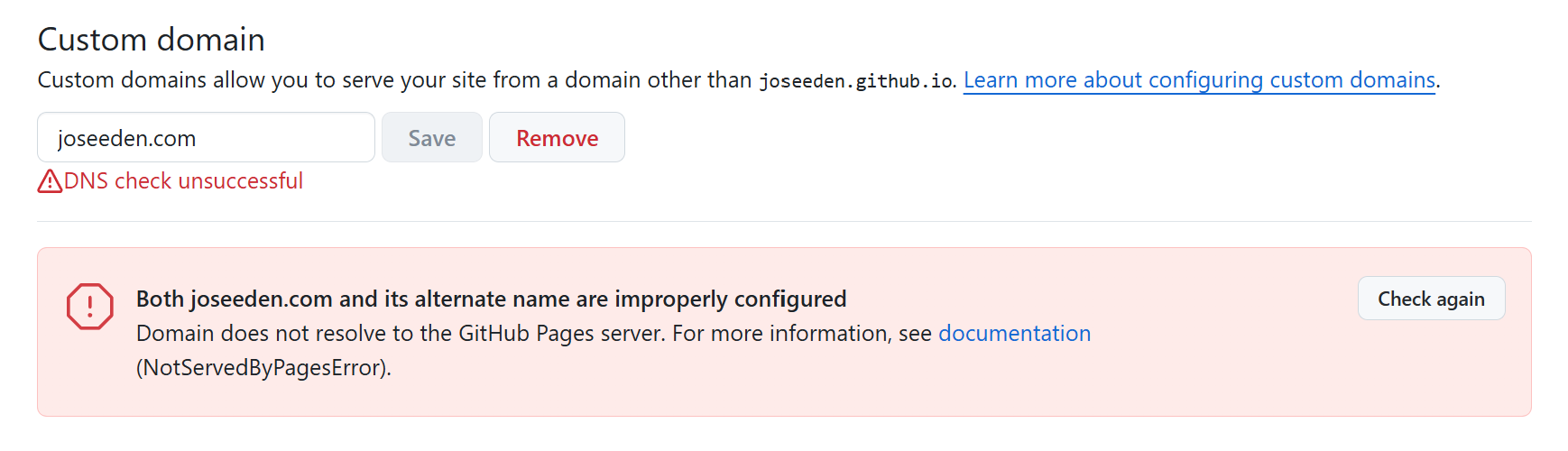
- Check the root A records against the Porkbun table above.
- Confirm
wwwpoints tojoseeden.github.io, rather thanuixie.porkbun.com. - Remove conflicting parking records for the root and
www, including a root ALIAS if present. - Run the DNS checks from the previous section and allow propagation time.
- Return to GitHub and select Check again.
The repository already builds build/, uploads it with actions/upload-pages-artifact, and publishes it with actions/deploy-pages. No workflow change is needed for this domain.
Is a CNAME File Needed?
For this Actions deployment, GitHub ignores a CNAME file. Set the domain in Pages settings.
For a different setup that publishes generated files from a branch, add static/CNAME containing only the domain, so Docusaurus copies it into the build root:
joseeden.com
See GitHub custom domain configuration.
5. Verify Ownership in GitHub
Ownership verification uses a TXT record at the account level. It is separate from the repository's website DNS check and can also be completed before the migration.
-
Open GitHub account Pages settings, rather than the repository settings.
-
Select Add a domain, enter
joseeden.com, and select Add domain. -
Copy the TXT record name and value GitHub displays.
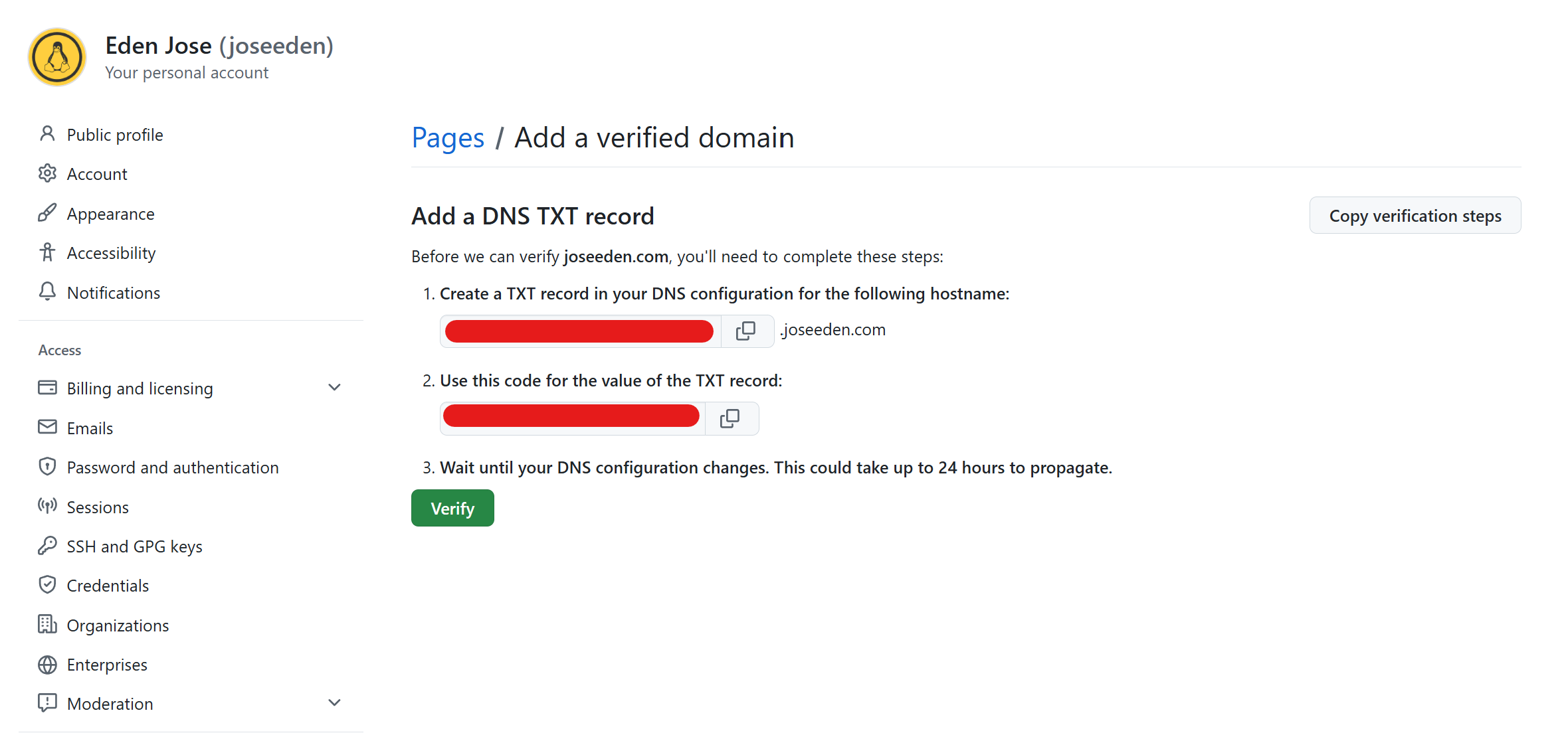
-
In Porkbun, open Domain Management, select
joseeden.com, and open DNS Records. -
Add a new record and select TXT as the type.
Field Value Type TXT – Text recordHost _github-pages-challenge-joseedenAnswer / Value Paste the verification code provided by GitHub TTL Keep 600Notes Optional: GitHub Pages domain verificationPorkbun automatically appends
.joseeden.comto theHost. -
Return to Github pages and click Verify.
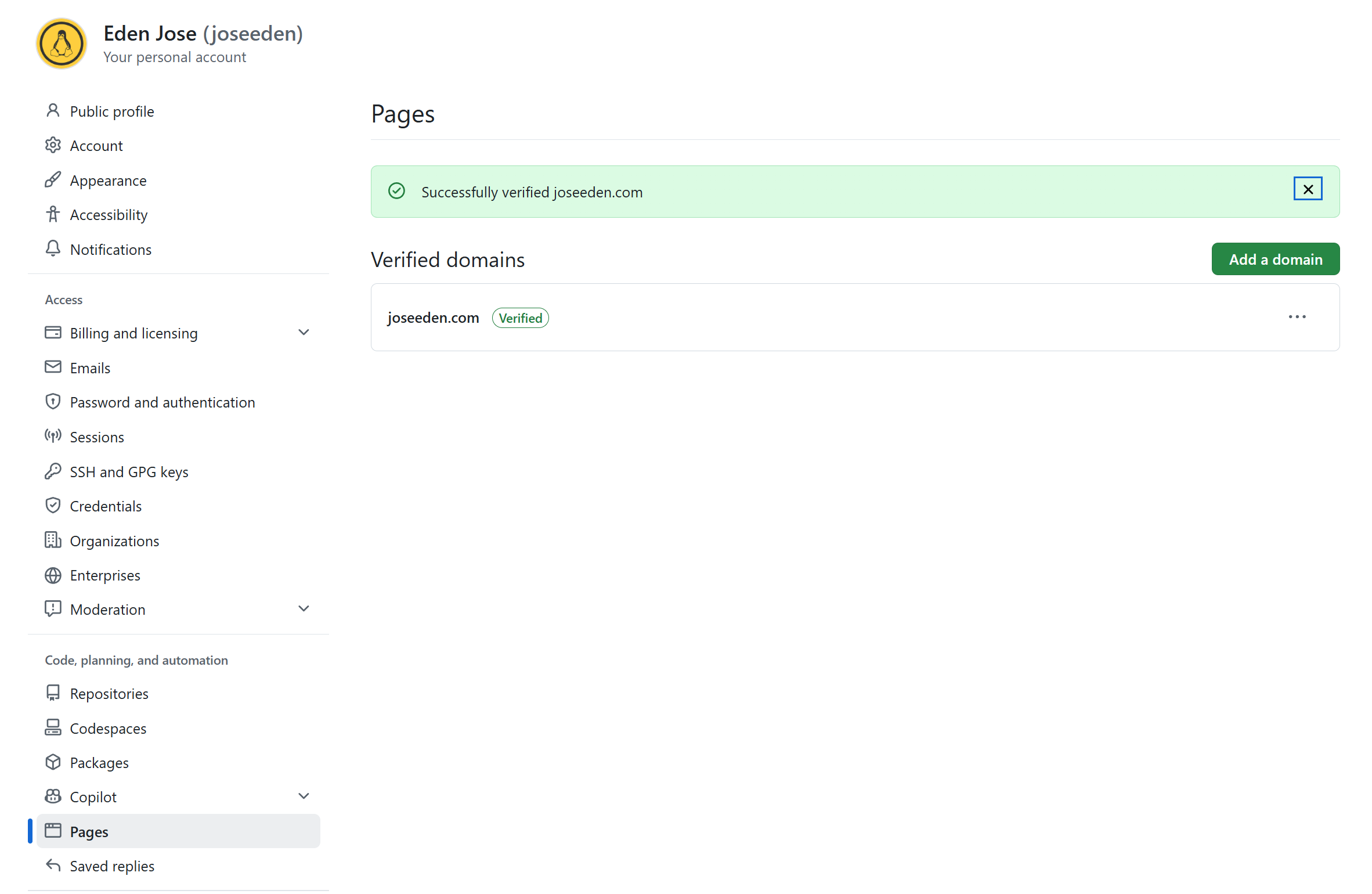
Keep this TXT record after verification. If the domain already appears as verified, keep the record and skip these steps.
See GitHub domain verification.
6. Deploy and Enable HTTPS
Open the local copy of your Docusaurus web site.
- Review the local diff and confirm the production build succeeds.
- When ready to publish, commit the intended files and push them to
master. - Open repository Actions and select Deploy to GitHub Pages.
- Wait for both Build Docusaurus and Deploy to GitHub Pages to succeed.
- Return to Pages settings and wait for the domain check and certificate provisioning.
- Enable Enforce HTTPS when available.
DNS propagation and HTTPS availability can take up to 24 hours.
With both hosts configured, GitHub redirects www.joseeden.com to the chosen root domain. See GitHub's custom domain guide.
Note: My current workflow currently runs on pushes to master. It does not define workflow_dispatch, so a manual Run workflow button is not expected.
7. Update Algolia DocSearch
Changing Docusaurus does not rewrite existing Algolia records. Complete this section after the new HTTPS site works.
Open the Existing Application
-
Sign in to the Algolia dashboard.
-
Select the application matching
themeConfig.algolia.appIdindocusaurus.config.ts. -
Go to Search ➜ Index.
-
Confirm the search index is correct (in my case, its
joseedenio). -
Open Crawler, or use Data sources → Crawler.
-
Select the existing crawler and go to Editor.
Copy the configuration. You should see something like this:
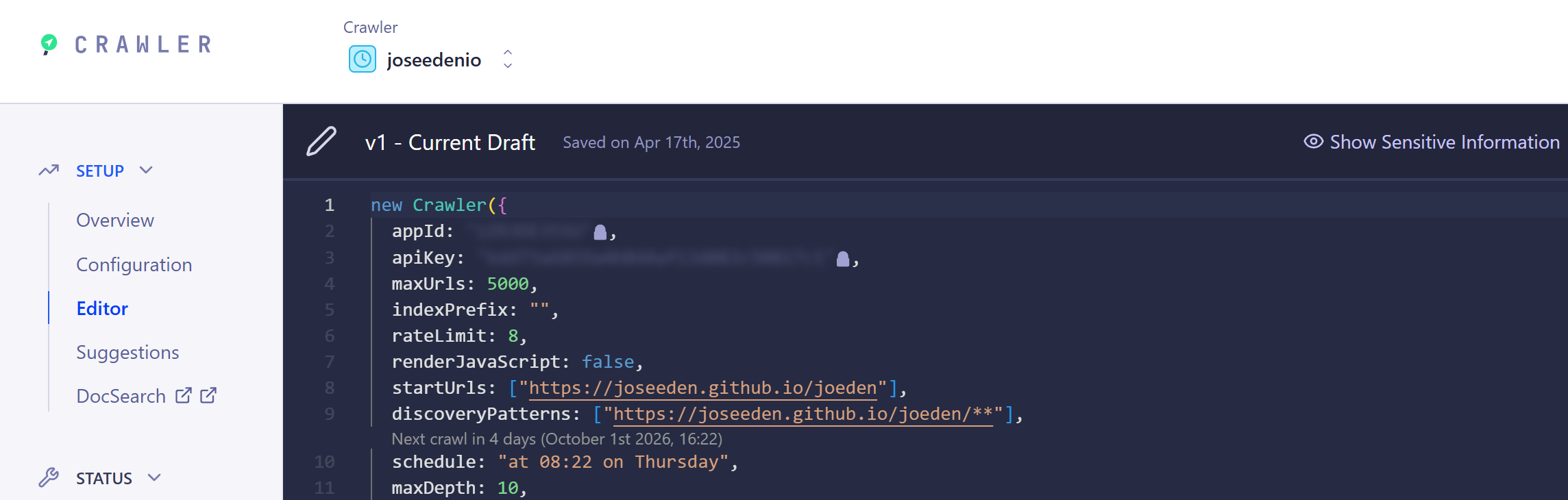
-
In VS Code, create a new file, paste the full configuration, and save it as
algolia-crawler-before-domain-change.jsin a private folder. Keep this backup unchanged during the migration.Note: The configuration is JavaScript. A
.txtbackup is also fine. Keep it private because it may contain API credentials, and avoid publishing credentials in screenshots.
Keep the existing application, index name, and search API key unless the account setup requires a change. The domain alone does not require a new frontend integration.
Add New Domain to Crawler
-
In your Crawler application, go to Domains
-
Add the new domain and click Verify Now.
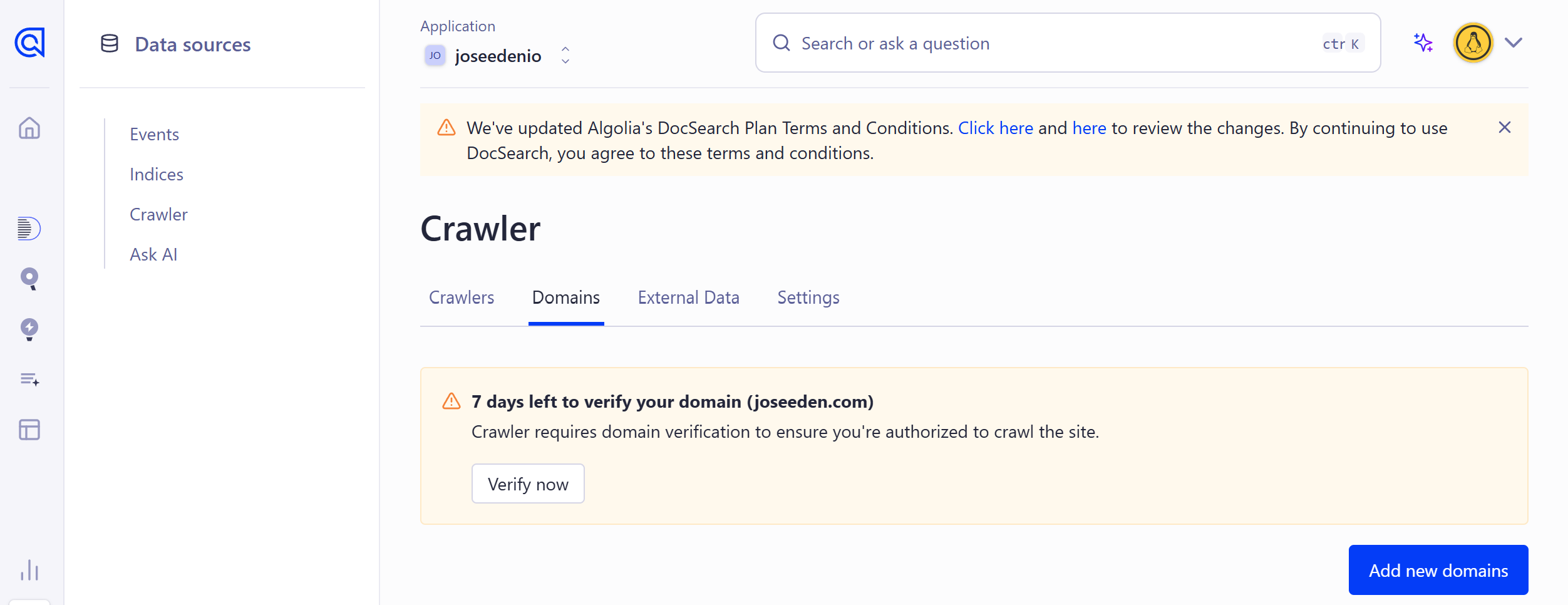
-
Select the DNS tab and copy the
HostandValue.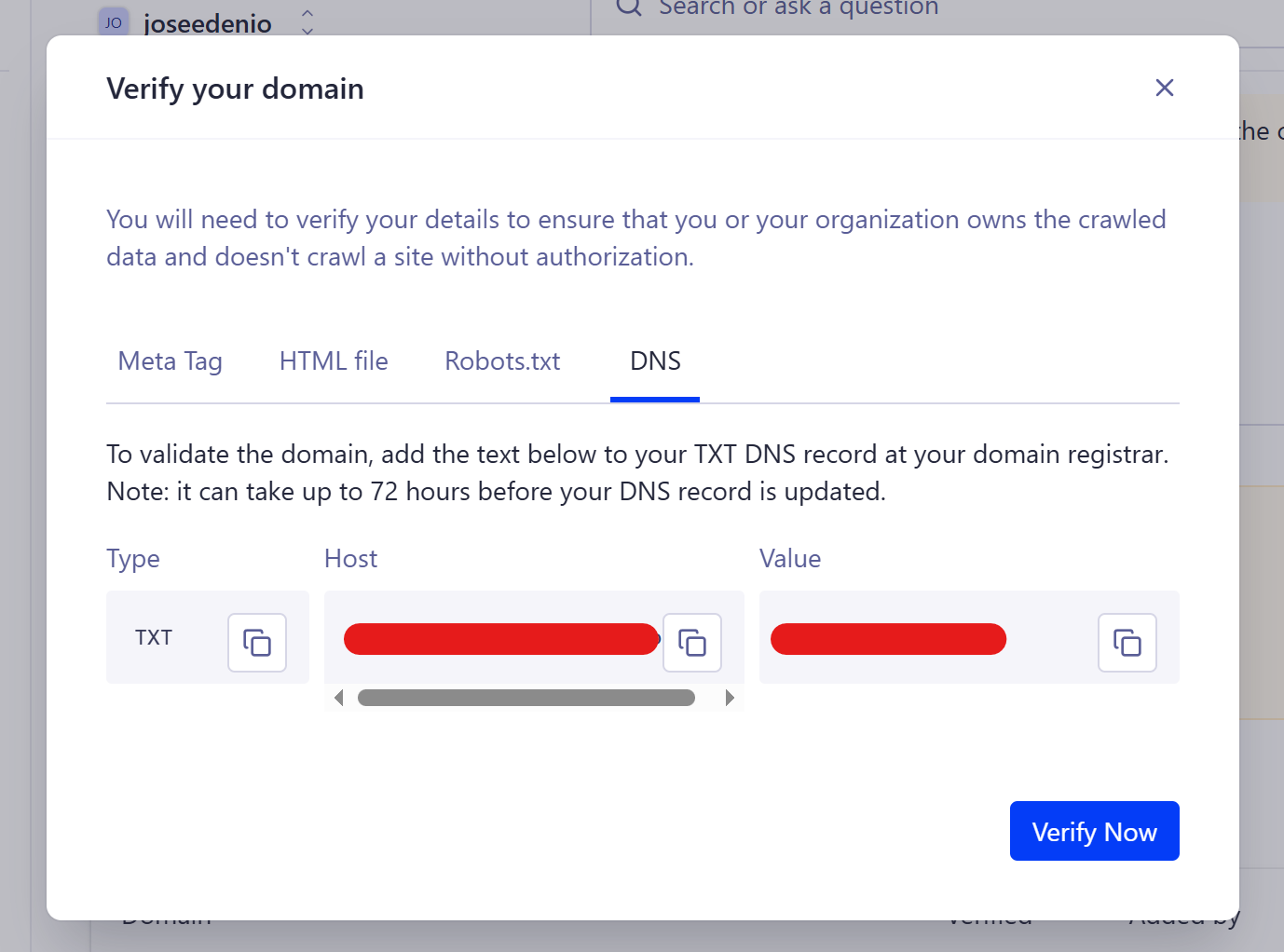
-
Go to Porkbun, select your domain and go to For DNS Server.
-
Add a TXT record and use the values from Algolia.
If the record name is
@orjoseeden.com, leaveHostblank.Field Value Type TXTHost The name Algolia provides, excluding the .joseeden.comsuffixAnswer / Value The exact TXT value Algolia provides TTL 600 -
Wait for DNS propagation and select Verify now in Algolia.
-
If the domain verification is successful, you should see this.
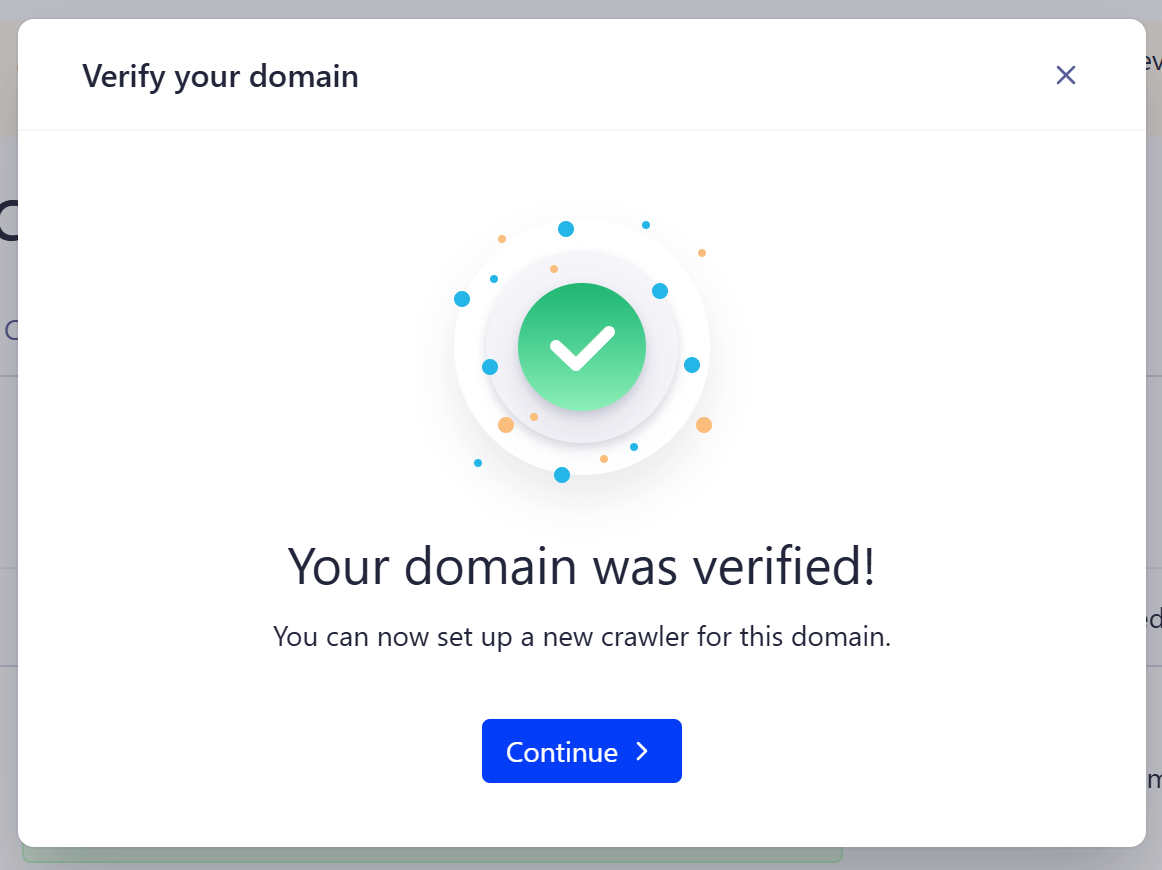
Algolia's verification is separate from GitHub's TXT record. Keep both records.
See Algolia domain verification.
Note: Dashboard labels and access differ between older and newer DocSearch applications. If the domain or crawler cannot be edited, request access through Algolia support rather than creating a replacement crawler.
Change Crawler URLs
Make these changes in Algolia → Crawler → joseedenio → Editor. Keep the local backup unchanged. Editing the local file does not update Algolia.
-
Find every occurrence of the old website prefix in the editor:
https://joseeden.github.io/joeden -
Replace that prefix with the new domain:
https://joseeden.com -
Preserve everything after the prefix, including paths, trailing slashes, and matching patterns. For example:
https://joseeden.github.io/joeden/**https://joseeden.com/**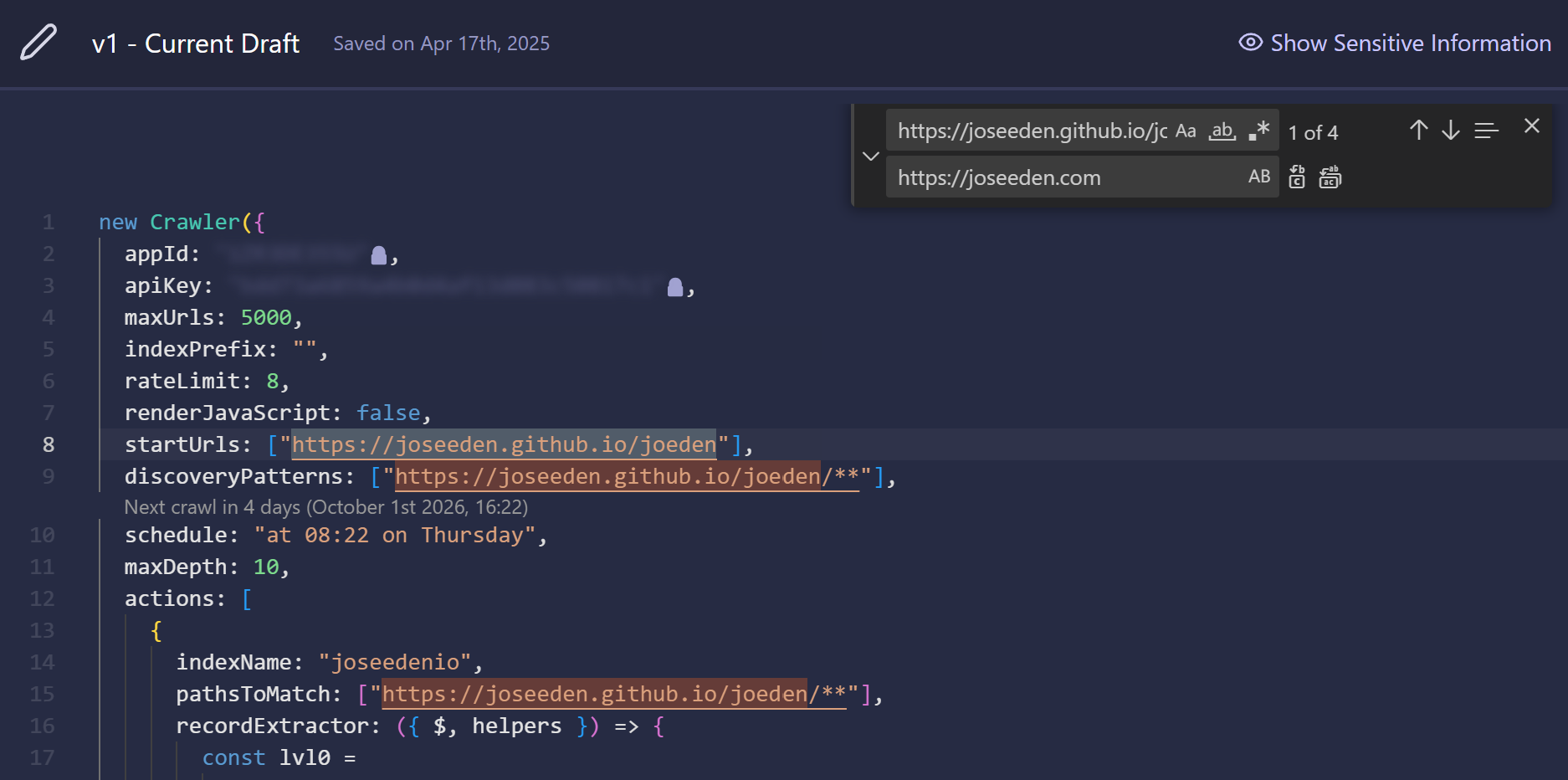
-
Check the following for the old addresses:
startUrlssitemapsdiscoveryPatterns- Each action's
pathsToMatch exclusionPatternstoo, if present.
-
Keep the API credentials,
indexName, extraction functions, and language and version metadata unchanged. -
You should see a notification saying that the configuration is valid.

If you get this error message, it means Algolia hasn’t verified the new domain yet. GitHub’s verification doesn’t carry over to Algolia. Please see Add New Domain to Crawler

-
Select Review and Publish in the Algolia editor.
-
Confirm the saved configuration contains the new URLs.
For a crawler that already covers the whole site, the relevant settings should look like these examples:
startUrls: ['https://joseeden.com/'],
sitemaps: ['https://joseeden.com/sitemap.xml'],
Inside the applicable action:
pathsToMatch: ['https://joseeden.com/**'],
Keep narrower scopes if they were intentional. For example, a docs-only pattern becomes https://joseeden.com/docs/**, while a Spanish docs pattern stays under https://joseeden.com/es/docs/**.
Note: These are partial edits to the existing configuration, not a replacement crawler file. Saving the configuration does not by itself confirm that search records have been updated.
See the Algolia start URLs reference and DocSearch configuration templates for the URL settings.
Test and Run the Crawl
-
Navigate to
https://joseeden.com/robots.txtin your web browser. You should see:User-agent: *Disallow: -
Go to
https://joseeden.com/sitemap.xml. It should display the XML configuration. -
Inspect the sitemap and confirm its page URLs use the new domain.
This message is normal:
This XML file does not appear to have any style information associated with it. The document tree is shown below. -
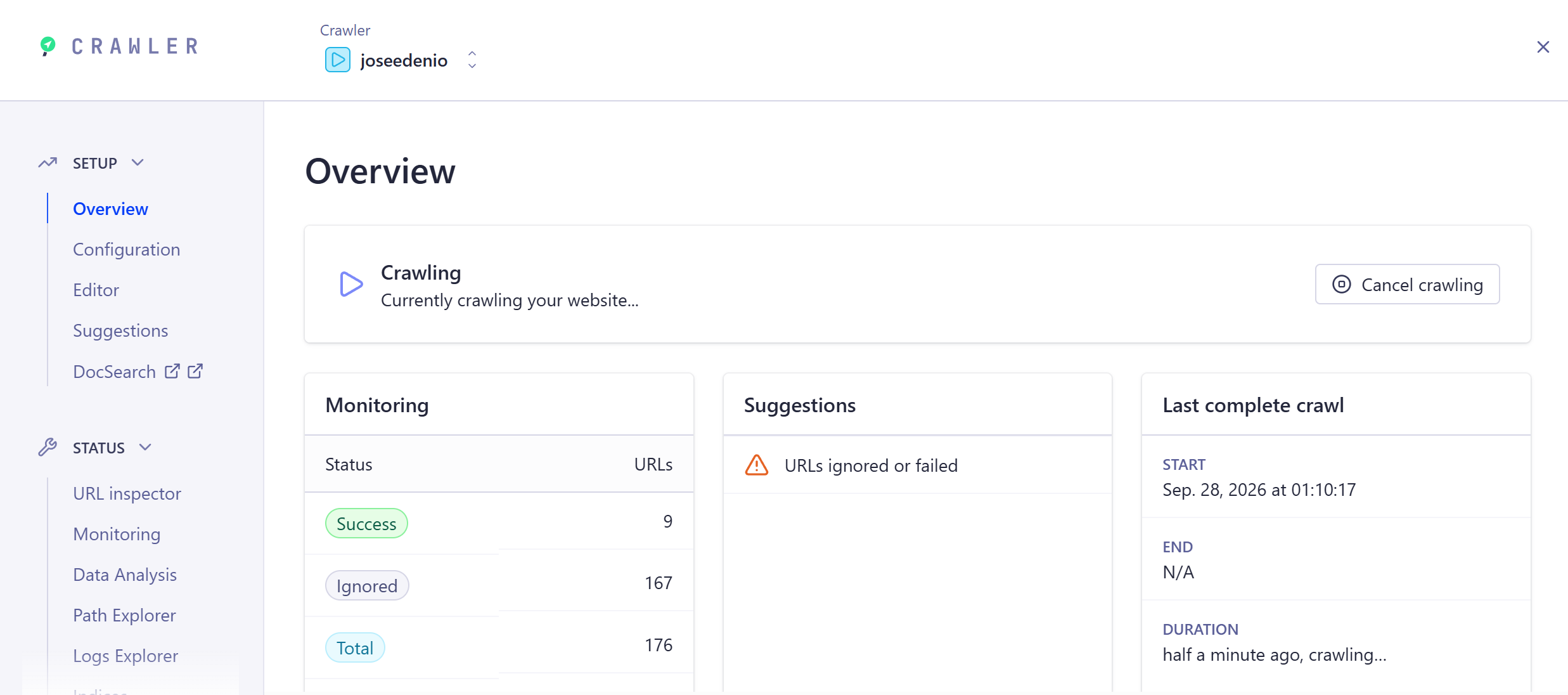
Back in Algolia, go to your Crawler application and start a full crawl (or click Resume Crawling).
-
Review failed or skipped URLs and any publishing or safety-check errors.
-
Browse records in
joseedenioand confirm theirurlfields usehttps://joseeden.com/.
Do not delete the default DocSearch crawler to force a refresh. Algolia documents manual crawling, URL testing, and access recovery in its crawler FAQ.
Test Search on the Website
- Open the live site's search box and search for a known page title.
- Open several results and confirm their URLs use the new domain.
- Test English and Spanish pages because contextual search is enabled.
- If search requests fail, inspect the browser's Network panel and the configured search key in Algolia.
- If that key has HTTP referrer restrictions, update them to allow the new website using the dashboard's accepted pattern format.
- If old records remain, confirm the full crawl published to
joseedenioand no other crawler is still writing old URLs into it.
Keep using a search-only API key in the frontend. For the original integration, see Configuring Algolia Search.
8. Validate the Migration
-
Open
https://joseeden.com/in a private browser window. -
Confirm
https://www.joseeden.com/reaches the same site. -
Confirm plain HTTP redirects to HTTPS after enforcement is enabled.
-
Open nested documentations directly.
For example:
https://joseeden.com/writings/https://joseeden.com/es/writings/ -
Refresh each nested page and check for missing CSS, JavaScript, or images.
-
Test search, social sharing, feedback, and downloads.
-
Inspect a page's canonical URL and social metadata in its source.
-
Test an old
joseeden.github.io/joeden/bookmark, including a nested page, and inspect its final destination.It should redirect to the new domain.
-
For response headers, you can use cURL from the terminal and run:
curl.exe -I https://joseeden.com/curl.exe -I https://www.joseeden.com/curl.exe -I http://joseeden.com/curl.exe -IL https://joseeden.github.io/joeden/
Update profile links and any external service configuration that explicitly names the old domain.
Check feedback and comment integrations for hostname restrictions or URL-based page identifiers.
Troubleshooting
Porkbun Parking Page Appears
- Confirm the domain uses the DNS provider where the records were edited.
- Check for old root A, AAAA, or ALIAS records.
- Compare DNS results with the table above.
- Allow caches to expire and retry in a private window.
GitHub Returns a 404
- Confirm the custom domain is saved on
joseeden/joeden. - Confirm Pages uses GitHub Actions.
- Confirm the latest deployment succeeded.
- Open the root URL without
/joeden/.
The Page Has No Styling
- Inspect failed requests in the browser's Network panel.
- Check whether asset paths still begin with
/joeden/. - Confirm the deployed commit contains
baseUrl: '/'. - Rebuild and deploy the updated configuration.
HTTPS Is Still Unavailable
- Confirm both root and
wwwDNS records are correct. - Remove conflicting records only for the affected website hosts.
- Check the certificate message in GitHub Pages settings.
- Allow certificate provisioning to finish before retrying enforcement.
Search Is Empty or Uses the Old Domain
- Confirm the crawler can fetch a live page over HTTPS.
- Check URL patterns for the old
/joeden/prefix. - Confirm the crawl completed and published to the frontend's index.
- Inspect the indexed URL and language fields.
- Check API responses for key restrictions or permission errors.
Changing to Another Domain Later
- Replace
joseeden.comin the Docusaurus URL and explicit metadata. - Keep
baseUrl: '/'if the new site still lives at the domain root. - Verify the new domain with GitHub and update the repository's Pages setting.
- Configure DNS at the new domain's active DNS provider.
- Deploy the new build and enable HTTPS.
- Add the new domain in Algolia, update crawler URLs, and run a full crawl.
- Arrange redirects from the old custom domain through a service that supports HTTPS and preserves paths. DNS records alone cannot perform URL redirects.
- Repeat the validation steps before retiring the old address.
If returning to the original GitHub project address, use url: 'https://joseeden.github.io' and baseUrl: '/joeden/'.
Coordinate that rebuild with removing the custom domain setting and updating DNS and Algolia.