Starter Notes
Updated May 17, 2024 ·
Overview
Tableau is a popular tool for visualizing and analyzing data. It helps users create interactive dashboards without needing to write code.
- Works with different data sources
- Drag-and-drop interface for quick analysis
- Helps build dashboards in hours instead of weeks
- Supports both simple and advanced analytics
Tableau can create interactive dashboards for various purposes:
- Sales performance – Track revenue by time and location
- Competitive analysis – Compare company performance
- Health tracking – Monitor outbreaks and trends
Who Uses Tableau?
Anyone who works with data can benefit from Tableau.
- Data Analysts – Analyzing trends and patterns
- Business Analysts – Making data-driven decisions
- Consultants – Presenting insights to clients
Tableau Versions
Tableau comes in different versions:
-
Tableau Public
- Free version with most features
- All visualizations included
- Connect to Excel and CSV files only
- 15 million rows of data
- Cannot save work locally, published online
-
Tableau Desktop (Professional)
- Paid version with advanced features
- All visualizations included
- All listed data sources
- Unlimited rows of data
- Publish online and save locally
info
New (since April 2024): Tableau Public now allows saving work locally.
Install Tableau Public
Create a Tableau account:
- Go to the Tableau Public website.
- Click Sign Up for Tableau Public.
- Provide a name, email and password, then click Create Account
- You'll receive an email containing a link to activate your account.
- Click the link to activate.
- Once activated, login using your Tableau account.
Download the app:
- On your dashboard, go to Create > Download Tableau Desktop Public Edition.
- On the next page, click Download the app.
Install the app:
- Once the download is complete, open the downloaded file
- The installer will guide you through the installation process.
- For Windows: Run the installer and follow the prompts.
- For Mac: Open the Disk image file (.DMG), and then double-click the installer package (.PKG) to start the installation.
- Agree to the Tableau Public terms of service.
- Follow the on-screen instructions to complete the installation
- Once installed, Tableau Desktop Public Edition will be ready to use.
Tableau Interface
- Canvas – Where visualizations appear
- Columns & Rows – Represent x-axis and y-axis
- Pages – Split data into multiple views (e.g., one per neighborhood)
- Filters – Exclude or focus on specific data
- Marks – Customize appearance (color, size, shape)
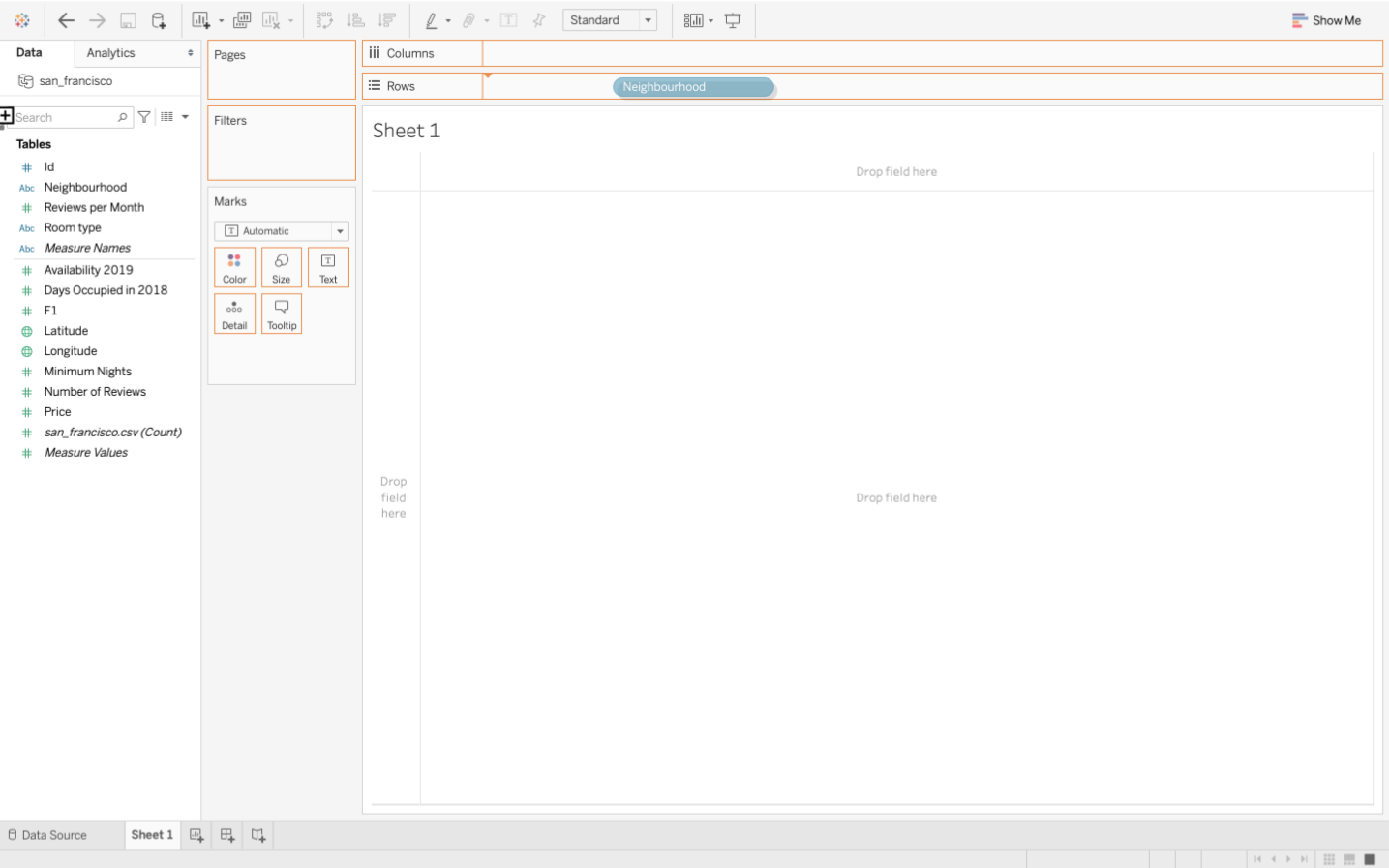
Tableau File Formats
Tableau saves workbooks in different formats depending on the version and data storage needs.
- Tableau Workbook (.twb) – Saves visualizations but not the data
- Tableau Packaged Workbook (.twbx) – Includes both the workbook and data
When to Use .twbx
A Tableau Packaged Workbook (.twbx) is useful when:
- Sharing workbooks with others
- Working with local data sources (like CSV files)
- Ensuring portability without requiring a separate data file
How to Save as .twbx
- Click File
- Select Save As
- Choose Tableau Packaged Workbook (.twbx)
Now, the file is ready to be shared and opened on another system.